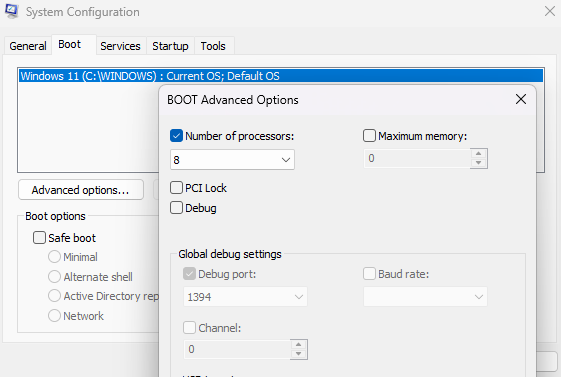
Changing the number of processors (CPU cores) used by your laptop in Windows can help in specific situations
Reasons to Change (or Limit) the Number of Processors
- Troubleshooting performance or startup issues
- Sometimes, after a Windows update or driver issue, your system might not detect all CPU cores properly.
- Enabling all available processors through settings can fix slow boot or lag problems.
- Testing or software compatibility
- Developers or IT technicians sometimes limit CPU cores to test how a program runs on lower-end hardware.
- Improve boot performance
- Enabling all processors during startup can slightly speed up boot time (though difference is small).
- Power saving
- On laptops, you might limit processors to reduce power usage and increase battery life (though Windows already manages this automatically).
“change number of processes in laptop”?
Do you mean one of the following:
- 🔹 Change the number of CPU cores (processors) used by Windows (for example, through msconfig → Boot → Advanced options)?
- 🔹 Reduce background processes to make your laptop faster?
- 🔹 Change the number of running processes in Task Manager (like stopping unwanted programs)?
- 🔹 Adjust performance settings for multitasking or virtual cores (Hyper-Threading)?