

Common Windows 11 Update Errors
Some frequent update errors include:
- 0x800f081f
- 0x80070002
- 0x80073701
- 0x8024a204
- 0x80070422
- “There were problems installing some updates”
If you know the exact error code, please share it for a more specific fix.
General Fixes for Windows 11 Update Errors
1. Run Windows Update Troubleshooter
- Go to Settings > System > Troubleshoot > Other troubleshooters
- Run the Windows Update troubleshooter
- Follow on-screen steps and restart your PC
2. Restart Windows Update Services
Open Command Prompt as Administrator and run these commands one by one:
- net stop wuauserv
- net stop cryptSvc
- net stop bits
- net stop msiserver
- net start wuauserv
- net start cryptSvc
- net start bits
- net start msiserver
- Then try updating again.
3. Check for Corrupted Files
- Run the System File Checker (SFC) and DISM tools:
- sfc /scannow
- Then:
- DISM /Online /Cleanup-Image /RestoreHealth
- After that, restart your computer and try updating again.
4. Free Up Disk Space
Make sure there’s at least 10-20 GB free on the system drive.
- Open Disk Cleanup (cleanmgr)
- Select your C: drive
- Clean system files
5. Manually Install the Update
If one specific update fails:
- Visit: https://www.catalog.update.microsoft.com
- Search for the KB number (e.g., KB5030219)
- Download and install the .msu file manually
6. Disable Antivirus/Firewall Temporarily
Some 3rd-party antivirus programs can block updates. Try disabling it temporarily while updating.
Restart Required for Windows Update-Related Services
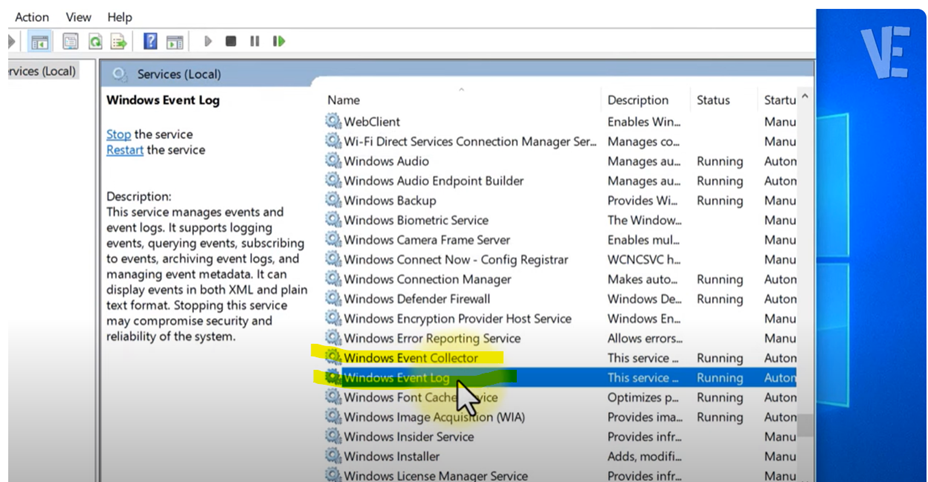
- Windows event controller-start
- Windows event log- start
- Windows update- start
After restarting the services, you need to run Command Prompt as Administrator and execute the following commands.
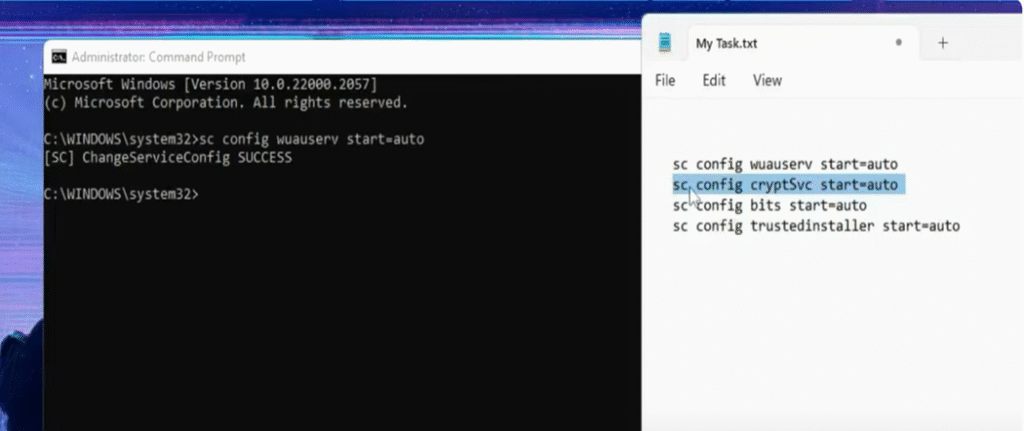
- Sc config wuauserv start=auto
- Sc config cryptSvc start=auto
- Sc config bits start=auto
- Sc config trustedintaller start=auto